1First sign-in
Your access is given by the owner of your company.
- You get an invitation by e-mail and choose your password.
- Sign in at app.wpsolutions.ch with e-mail and password.
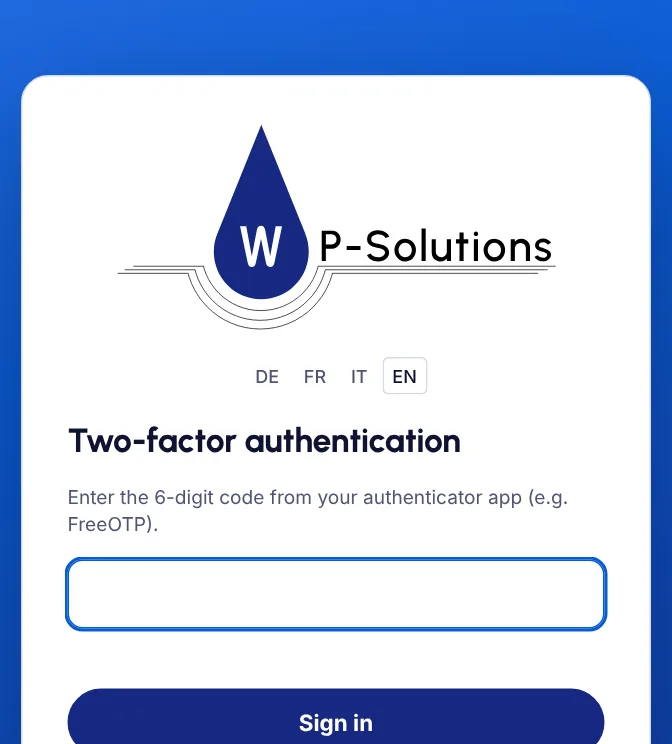
- The first time, a QR code appears: scan it with an authenticator app (FreeOTP, Aegis, Google Authenticator …) and enter the 6-digit code.
- Write down the 10 recovery codes and keep them safe.
TipLost your phone? Sign in with a recovery code, or we reset the two-factor sign-in for you.
2Overview
What is happening this month and what is waiting for you.
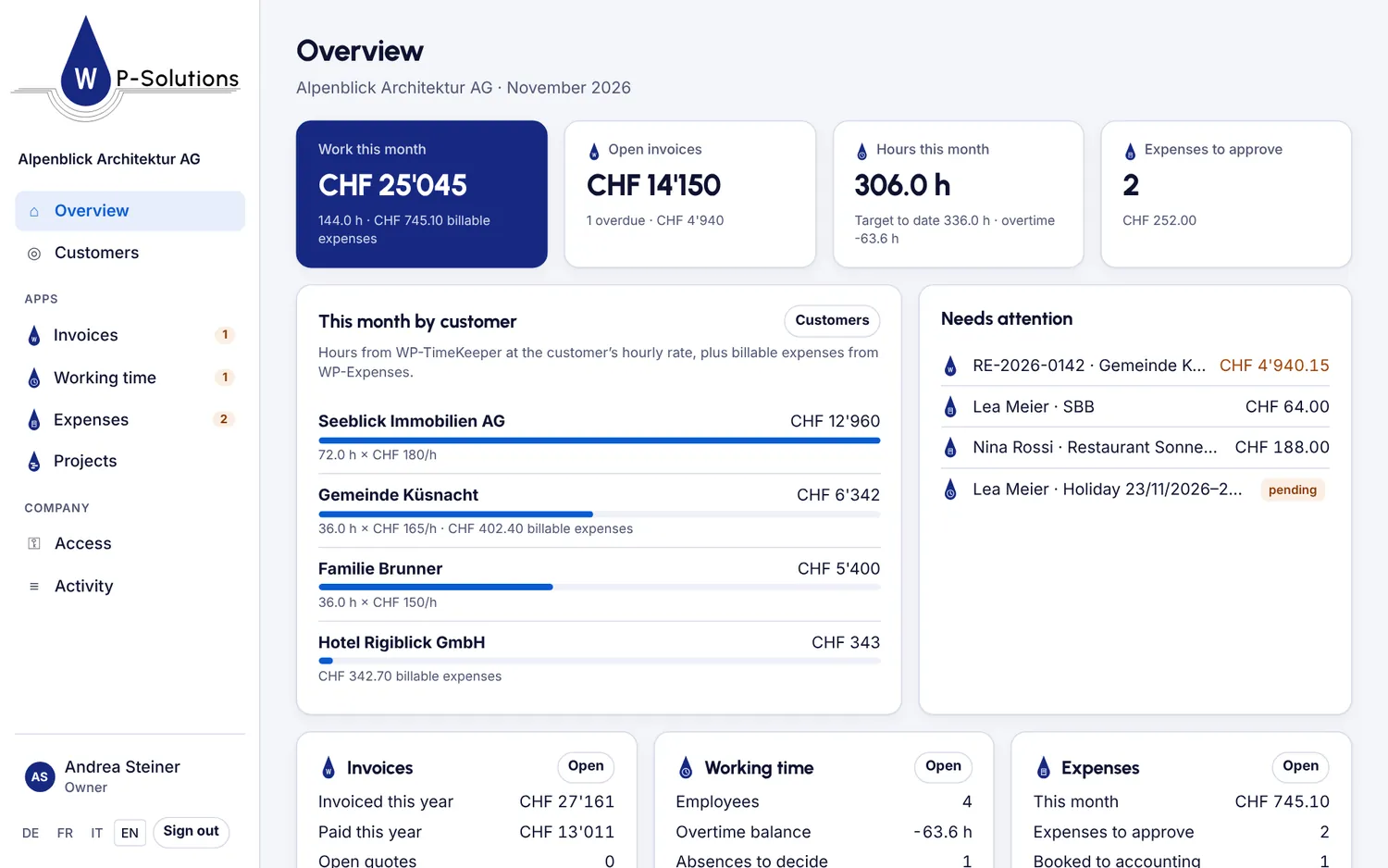
- Overview shows this month’s work by customer: hours times hourly rate plus billable expenses.
- Plus open and overdue invoices, hours and overtime, and the expenses to approve.
- Needs attention lists everything waiting for a decision.
3Customers in every app
One customer list, the same in every app.
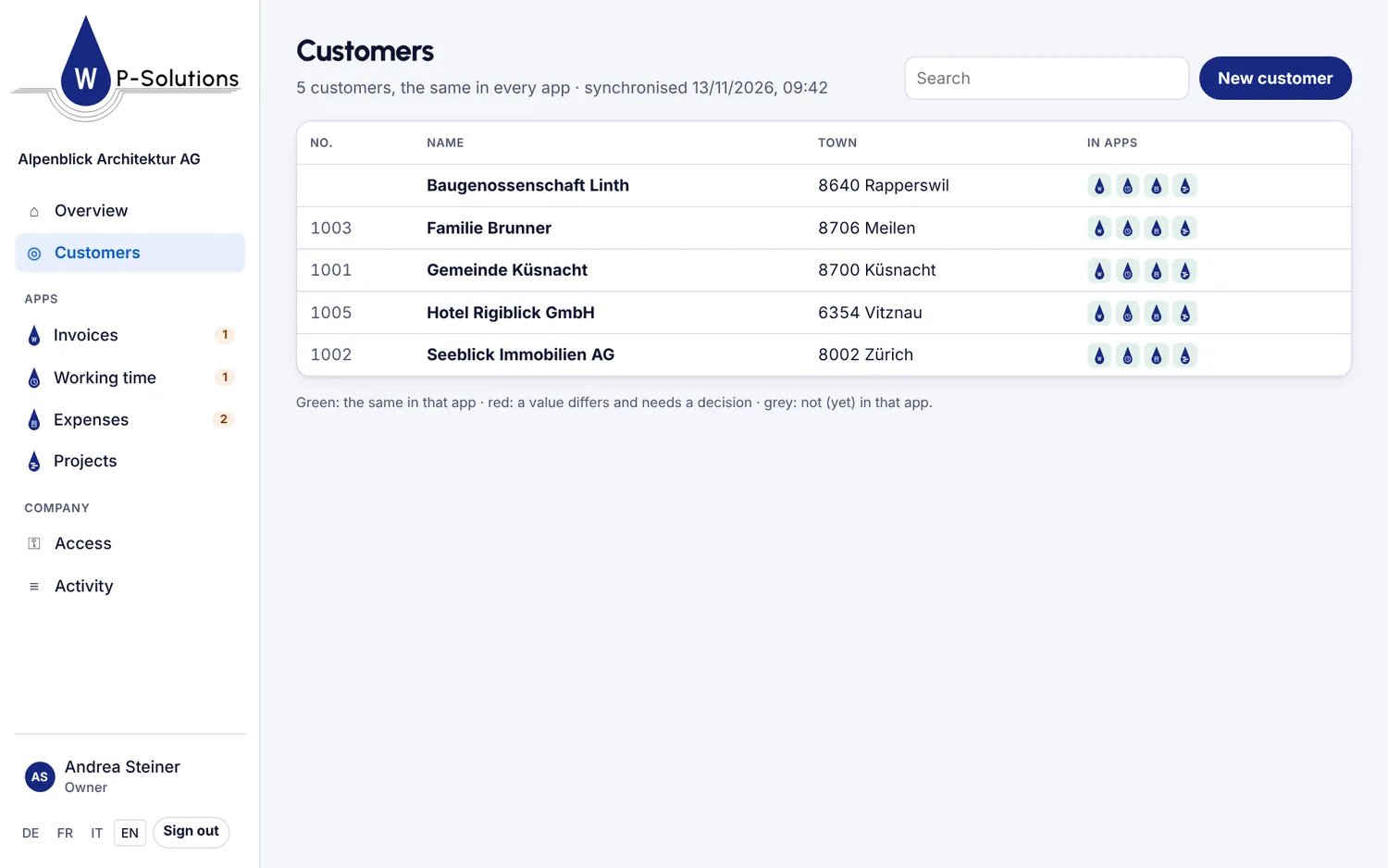
- Under Customers you see all customers; the icons show in which apps they match.
- With New customer or Edit, you change a customer in every app at once.
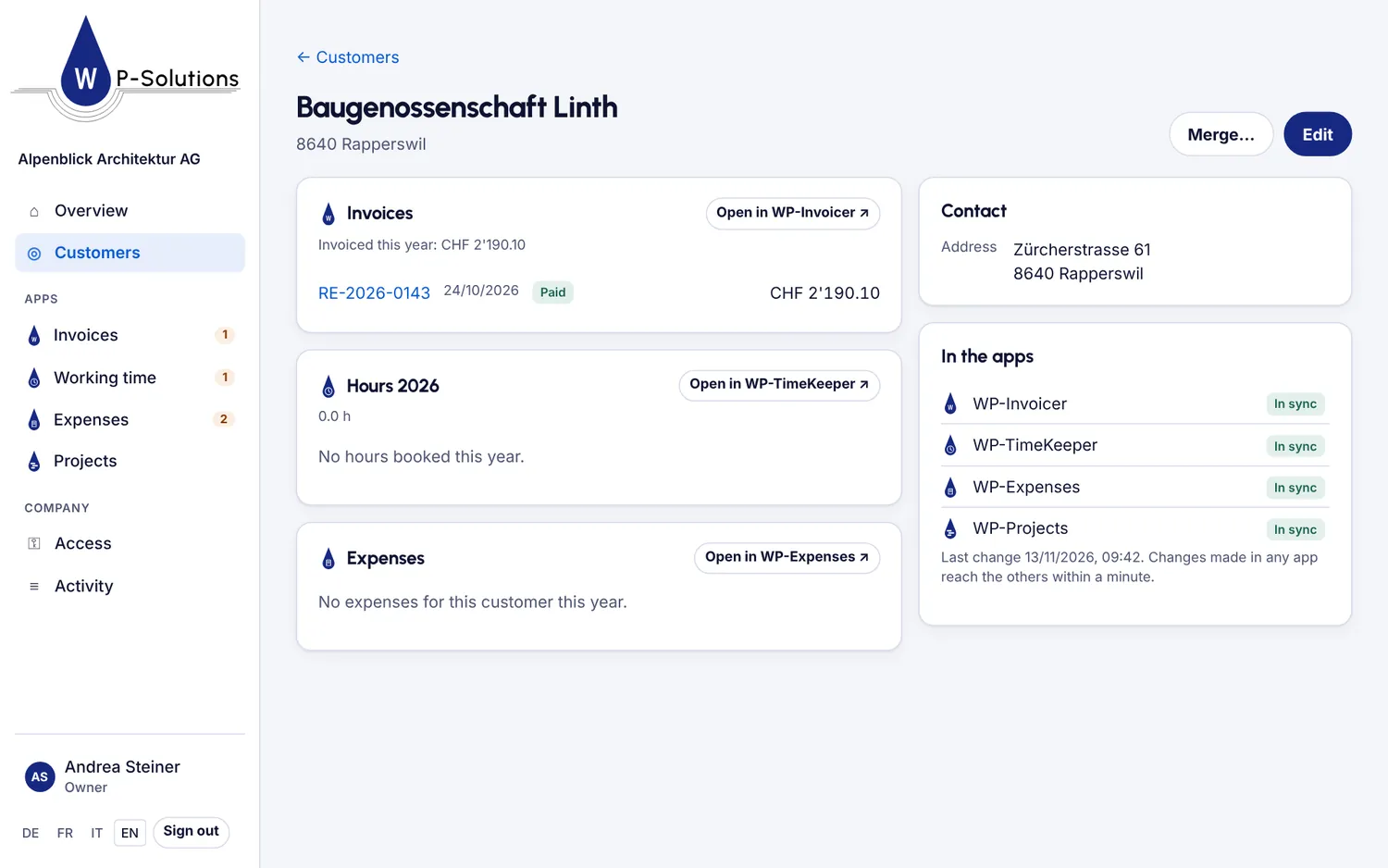
- Click a customer to see its invoices, hours and expenses.
- If the same customer exists twice, combine it with Merge.
TipIf the same value was changed differently in two apps, a conflict appears. You then choose which value applies.
4Deciding
What your role in the app allows, you do right in the cockpit.
- Invoices: invoices and quotes with status; Mark as paid an invoice.
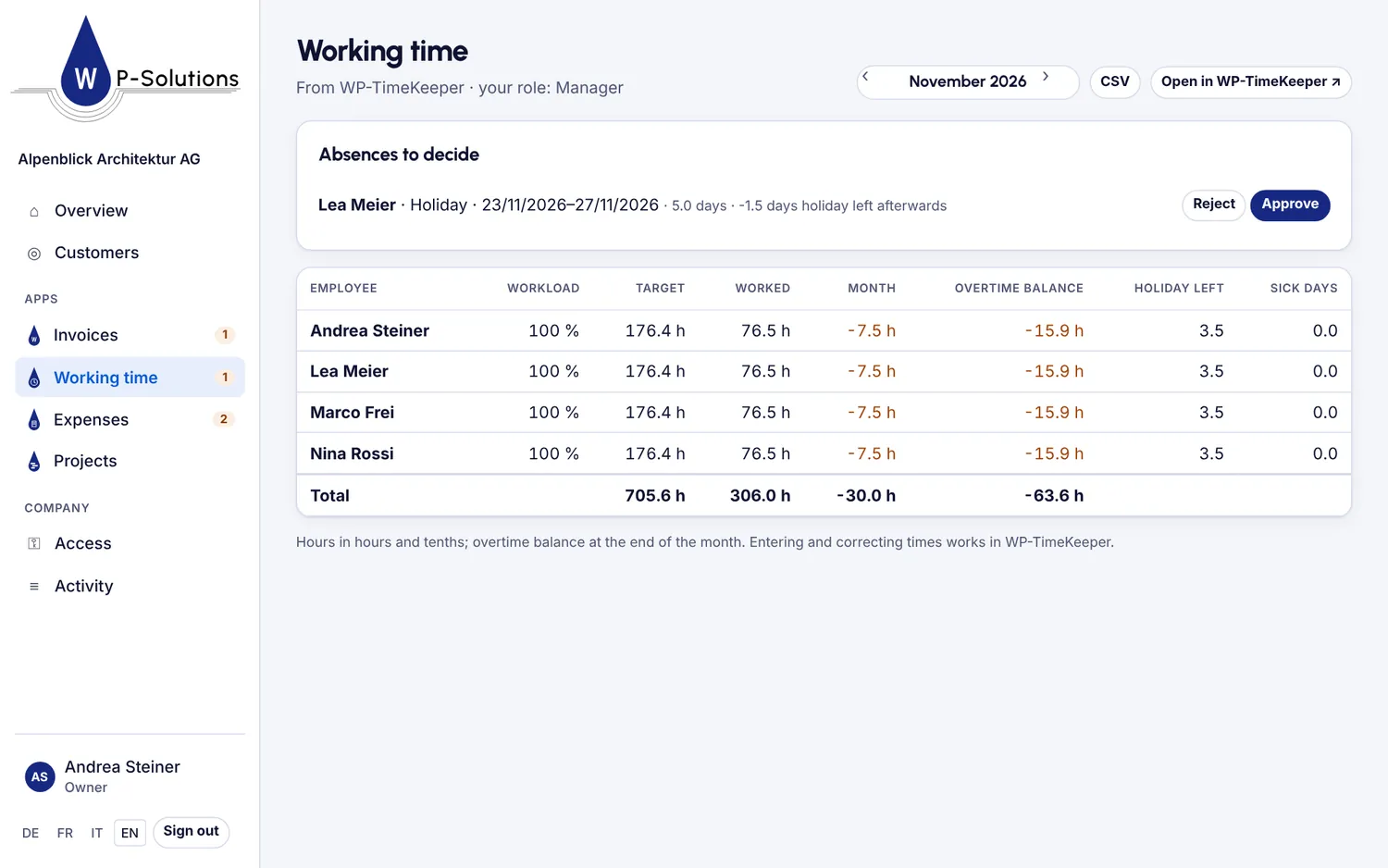
- Working time: monthly report per person; Approve or Reject absences.
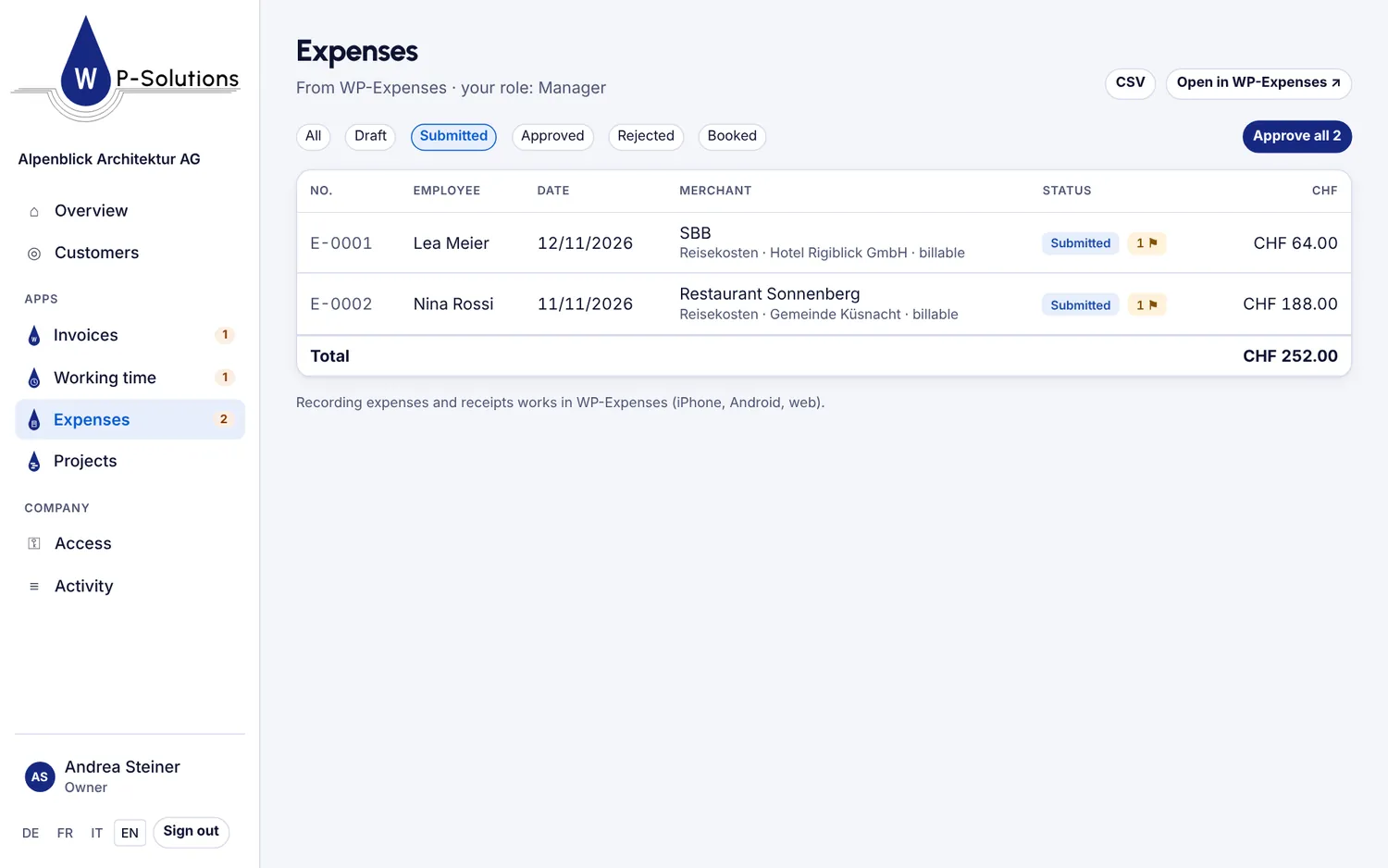
- Expenses: expenses with receipt and checks; approve one by one or several at once, or reject with a reason.
- Projects: projects with status and hours, open reports and what is ready to invoice.
TipFor everything else – writing an invoice, entering time – Open in WP-… takes you into the app, signed in.
5For owners: giving access
You decide who may sign in.
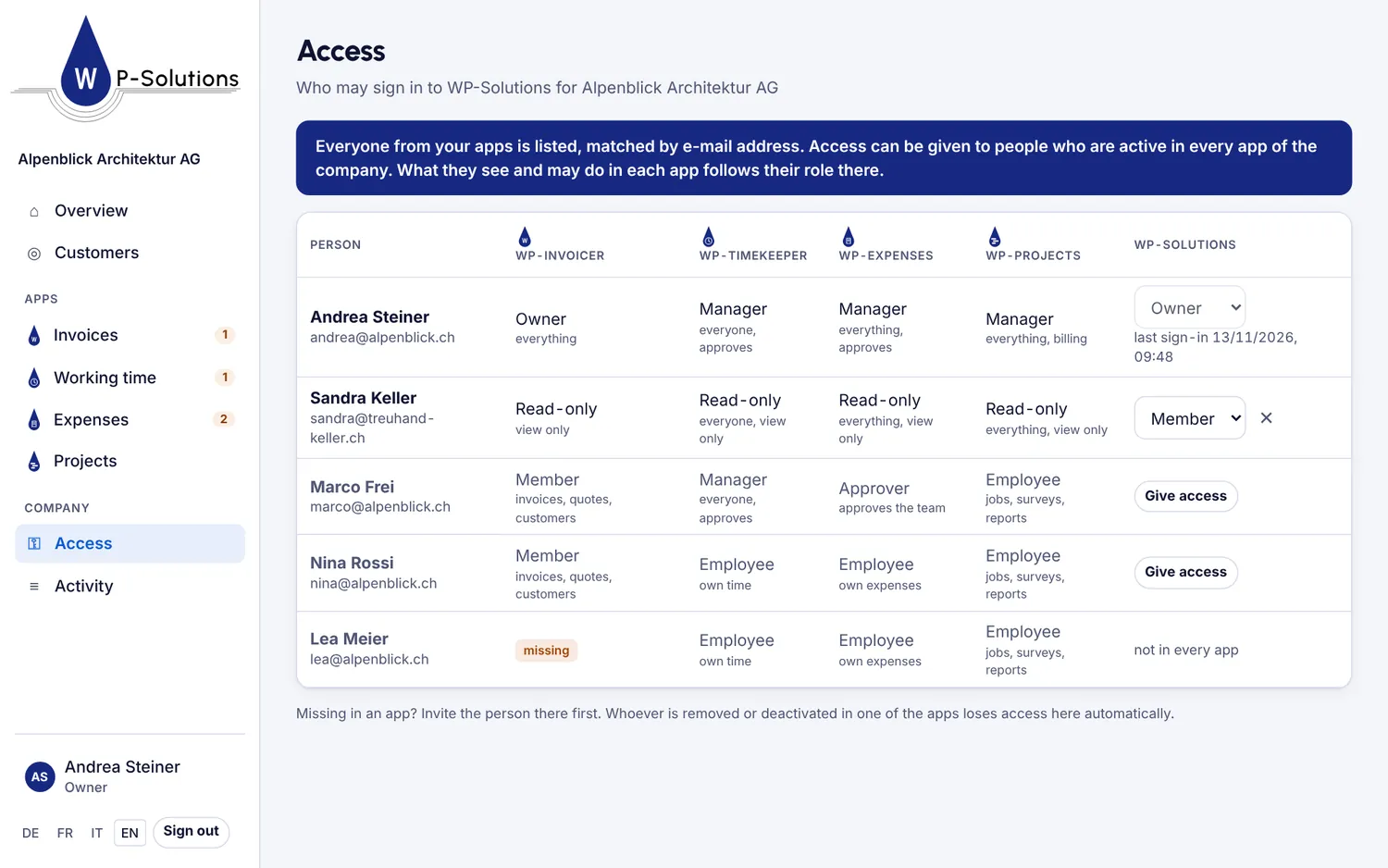
- Open Access. It lists everyone in your apps with their role in each app.
- Click Give access for a person. They get an invitation.
- What the person sees and may do comes from their roles in the apps. For your fiduciary, “read-only” roles fit.
TipOnly someone active with the same e-mail address in every linked app gets access. If someone is removed in an app, their access ends automatically.
More questions?
Write to us, we are happy to help.